
GitFlow + GitOps: The Complete Senior Git Guide for Agile Teams and Scrum
A comprehensive tutorial on GitFlow and GitOps best practices from a senior developer's perspective. Master branch strategy, conflict resolution, commit discipline, merge strategies, documentation, and how to be a Git professional in Agile/Scrum teams.
Table of Contents
GitFlow + GitOps: The Complete Senior Git Guide for Agile Teams and Scrum
Mastering Git Discipline: From Junior to Senior Developer
🎯 Introduction: Why Git Discipline Matters
Let me be direct: Most developers don’t understand Git.
They know the commands (git push, git pull, git merge). But they don’t understand the discipline behind using Git.
There’s a huge difference between:
Developer A: "I pushed my code"
Developer B: "I followed GitFlow, created a feature branch,
              wrote clean commits, created a PR, got reviewed,
              merged cleanly, and deployed through CI/CD"
Both “pushed code.” One is a junior. One is a senior.
What This Guide Is About
This is not a “Git commands reference.” You don’t need to memorize git rebase -i.
This is: “How to use Git as a senior developer in an Agile/Scrum team, from the perspective of someone who understands the product, the team, and the consequences.”
We will cover:
✅ GitFlow as a complete branching strategy
✅ How to structure your repository
✅ Commit discipline and clean history
✅ Pull requests as communication
✅ Conflict resolution professionally
✅ Merge strategies and their implications
✅ Documentation as part of version control
✅ Release management and deployment
✅ Common mistakes and how to avoid them
✅ How senior developers think about Git
Why GitFlow?
There are many Git workflows:
- Git Flow: Complex, but comprehensive
- GitHub Flow: Simple, suited for CI/CD
- Trunk-Based Development: Extreme simplicity
- Custom Workflows: Company-specific variations
We’re focusing on GitFlow because:
✅ It handles complex scenarios well
✅ It scales from small to large teams
✅ It’s the most used enterprise workflow
✅ It’s the one that teaches discipline
✅ Once you master GitFlow, other workflows are trivial
🏗️ Part 1: Understanding GitFlow Conceptually
Before you touch the keyboard, you need to understand what GitFlow is and why it exists.
The Problem GitFlow Solves
Imagine a team without Git discipline:
Developer A: Pushes to main
Developer B: Pushes to main at same time
Developer C: Wants to deploy, but main has half-finished features
Developer D: Creates hotfix, pushes directly to main
Developer E: Tries to revert a bad commit, breaks everything

Result: Chaos. Broken deploys. Data loss.
GitFlow solves this by enforcing isolation and order.
The Core Concept: Branches as Stages
In GitFlow, different branches represent different stages of code maturity:
Feature Branch (develop branch)
  ↓ (code review + tests)
Develop Branch (staging-ready)
  ↓ (release preparation)
Release Branch (pre-production)
  ↓ (final testing)
Main Branch (production-ready)
  ↓
Production

Plus: Hotfix branches (emergency fixes)
Each branch has a purpose. Each stage has requirements.
Code flows in one direction: feature → develop → release → main → production.
The Main Branches
Main (or Master)
Purpose: Production-ready code. Always safe. Always deployable.
Who touches it: Only through release branches or hotfixes
Rule: Every commit on main should be production-safe
Deployment: Automatically deployed to production (or manually, but immediately)
On main, you never push directly. Never commit directly.
Main only receives merges from:
- Release branches (completing a release)
- Hotfix branches (emergency production fixes)
Develop
Purpose: Integration branch. Next release candidate.
Who touches it: Feature branches merge here
Rule: Should be stable, but not production-ready
Deployment: Deployed to staging environment
Develop is where feature branches converge. It’s the integration point.
Developers work on features, then merge to develop for testing.
Supporting Branches
Feature Branches
Naming: feature/feature-name or feature/JIRA-123-feature-name
Created from: develop
Merged back to: develop
Purpose: Isolated work on a single feature
Lifetime: Days or weeks (1 sprint typically)
Delete after merge: YES
Each developer creates feature branches for their stories.
Release Branches
Naming: release/1.2.3 (semantic versioning)
Created from: develop
Merged back to: main and develop
Purpose: Prepare code for production release
Lifetime: Few days (testing, version bumps, docs)
Delete after merge: Usually yes (archived in git tags)
When you’re ready to release, create a release branch.
Hotfix Branches
Naming: hotfix/issue-description
Created from: main
Merged back to: main and develop
Purpose: Emergency production fixes
Lifetime: Hours to days
Delete after merge: YES
If production breaks, create a hotfix branch.
📁 Part 2: Repository Structure and Initial Setup
Before you write any code, your repository needs structure.
Folder Organization (Not Git-specific, but crucial)
A well-organized repository looks like:
project-repo/
├── src/                          # Source code
│   ├── api/                      # API layer
│   ├── services/                 # Business logic
│   ├── models/                   # Data models
│   ├── utils/                    # Utilities
│   └── tests/                    # Test files
├── docs/                         # Documentation
│   ├── architecture.md
│   ├── setup.md
│   ├── api-spec.md
│   └── deployment.md
├── scripts/                      # Build/deploy scripts
│   ├── build.sh
│   ├── test.sh
│   └── deploy.sh
├── .github/                      # GitHub Actions (CI/CD)
│   └── workflows/
├── .gitignore                    # What to ignore
├── README.md                     # Entry point
├── package.json / Cargo.toml     # Dependencies
├── Dockerfile                    # Container definition
└── docker-compose.yml            # Local development
This structure:
✅ Is immediately understandable
✅ Scales to large codebases
✅ Separates concerns
✅ Makes onboarding easier
The .gitignore File
Your .gitignore is critical. It prevents accidental commits:
# Dependencies
node_modules/
vendor/
target/
.gradle/

# Compiled code
*.o
*.class
build/
dist/

# Local environment
.env
.env.local
config/local.json

# IDE files
.vscode/
.idea/
*.swp
*.swo
*~

# OS files
.DS_Store
Thumbs.db

# Logs
logs/
*.log

# Artifacts
*.jar
*.zip
*.tar.gz

# Secrets (NEVER commit secrets)
secrets/
*.pem
private_key*
Rule: If you shouldn’t see it on a pull request, it goes in .gitignore.
Initial Repository Setup
When you create a new repository:
# Initialize Git
git init

# Create main and develop branches
git checkout -b main
git checkout -b develop

# Create initial structure
mkdir src docs scripts tests

# Create initial README
echo "# Project Name" > README.md

# Create .gitignore
# (copy template appropriate to your language)

# Create initial commit
git add .
git commit -m "Initial commit: repository structure"

# Push to remote
git remote add origin https://github.com/team/project.git
git push -u origin main
git push -u origin develop
Important: Both main and develop should be protected branches.
In GitHub:
- Settings → Branches → Branch Protection Rules
- Protect
main: Require PR reviews, pass status checks - Protect
develop: Require PR reviews, pass status checks
This prevents accidental direct pushes.
🌿 Part 3: Creating and Managing Branches Professionally
Now you’re ready to work. Let’s talk about branches.
Understanding Branch Lifecycle
A feature branch has a lifecycle:
Day 1: Create branch from develop
       ↓
Days 2-5: Work, commit, push
          ↓
Day 5: Open pull request
       ↓
Day 6: Code review, feedback, changes
       ↓
Day 7: Approval and merge
       ↓
Day 8: Delete branch
Each stage has responsibilities.
Creating a Feature Branch: The Right Way
Step 1: Ensure You’re On Latest Develop
git checkout develop
git pull origin develop
Why:
- You start from the latest code
- Avoid merging old code
- Reduce future conflicts
Step 2: Create Your Branch
# Naming convention
git checkout -b feature/export-csv-functionality

# OR with JIRA ticket
git checkout -b feature/PROJ-234-export-csv
Branch naming matters:
✅ Good names:
feature/user-authentication
feature/PROJ-123-payment-integration
bugfix/fix-null-pointer-in-api
hotfix/critical-security-patch

❌ Bad names:
feature/work
feature/new-stuff
feature/alice
bugfix/bug
feature/v2
feature/wip
Why naming matters:
✅ Clarity: People understand what’s in the branch
✅ Searchability: You can find branches later
✅ Context: JIRA numbers link code to requirements
✅ Professionalism: Shows you think about structure
Step 3: Verify You’re On the Correct Branch
git branch -a
# Shows:
# * feature/export-csv-functionality
#   develop
#   main
The * shows you’re on the right branch.
Step 4: Create Local Tracking
git push -u origin feature/export-csv-functionalityThe -u flag sets this branch to track the remote branch.
Now when you git push (without arguments), it pushes to this branch.
Working on Your Feature Branch
Commit Regularly
# Work on the feature
# ... edit files ...

# Stage changes
git add src/export.ts

# Commit with meaningful message
git commit -m "Implement CSV generation logic"

# Work more
# ... edit files ...

git add tests/export.test.ts
git commit -m "Add unit tests for CSV generation"

# Push to remote
git push
Why push regularly?
✅ Backs up your work
✅ Makes your progress visible
✅ Allows others to see what you’re doing
✅ Prevents losing work if your laptop dies
Keep Your Branch Updated
While you work, other developers merge to develop.
Your branch gets stale. You need to update it:
# Fetch latest develop
git fetch origin develop

# Rebase your work on top of latest develop
git rebase origin/develop
This keeps your branch up-to-date without merging.
Why rebase instead of merge?
With merge:
develop: A → B → C
your branch: D → E → F → Merge commit
Result: Messy history with merge commits

With rebase:
develop: A → B → C
your branch: D' → E' → F' (replayed on top of C)
Result: Clean, linear history
Rebase makes history cleaner. History matters.
Handling Conflicts During Rebase
If rebase encounters conflicts:
git rebase origin/develop

# Git tells you:
# CONFLICT (content conflict) in src/api.ts
Resolve conflicts:
# Edit the conflicted files
# Remove conflict markers (<<<, ===, >>>)
# Choose what code to keep

# Stage the resolved files
git add src/api.ts

# Continue rebase
git rebase --continue

# If more conflicts exist, repeat
# If done, rebase completes
A note on conflict resolution:
Conflicts are information. They tell you:
"You and someone else changed the same code.
Figure out what the correct version should be."
The correct approach is not to keep both or just one randomly. It’s to think about the correct logic.
❌ Bad resolution:
<<<<<<< HEAD
if (user.age > 18) { return true; }
=======
if (user.verified) { return true; }
>>>>>>> origin/develop

❌ So you do this:
if (user.age > 18 && user.verified) { return true; }

✅ Good resolution:
Think: "What's the correct business logic?"
Ask the team: "Should users be >18 OR verified, or both?"
Implement the correct logic
Branch Deletion: Cleanup Matters
After your PR is merged:
# Delete local branch
git branch -d feature/export-csv-functionality

# Delete remote branch
git push origin --delete feature/export-csv-functionality
Why delete?
✅ Keeps repo clean
✅ Prevents confusion
✅ Forces discipline
✅ Shows the branch served its purpose
On GitHub, after merging a PR, you see: “Delete branch” button. Click it.
💬 Part 4: The Art of Meaningful Commits
A commit is not just a collection of changes. A commit is a story.
Why Commit Messages Matter
Imagine debugging in production. You see a weird behavior. You run:
git log --onelineYou see:
❌ Bad history:
3f2e1a WIP
a8f7b2 stuff
9c2d1e fixed
7e4a3b more work
b1c2d3 finally
You learn nothing. You’re lost.
Versus:
✅ Good history:
3f2e1a Add caching for user exports to reduce memory usage
a8f7b2 Handle large CSV files with background jobs
9c2d1e Add validation to prevent exporting other users' data
7e4a3b Implement CSV generation with proper UTF-8 encoding
b1c2d3 Create export endpoint skeleton
You immediately understand what happened.
The Anatomy of a Good Commit Message
A professional commit message has two parts:
Part 1: The Subject Line (First Line)
Implement CSV export feature with background job supportRules:
✅ Imperative mood (“Add” not “Added”, “Fix” not “Fixed”)
✅ Present tense (what the commit does, not what it did)
✅ Short (50 characters is ideal, 70 max)
✅ Clear (anyone can understand it)
✅ No period at the end
Part 2: The Body (After blank line)
Implement CSV export feature with background job support

Users can now export their data as CSV files. For exports
less than 50k records, the file is generated immediately.
For larger exports, a background job processes the data
and emails the download link to the user.

This implementation uses the existing CsvHelper library
and integrates with the job queue system.

Addresses: PROJ-234
The body:
✅ Explains the why (not the how)
✅ Mentions context (why this change matters)
✅ References tickets (links to requirements)
✅ Is readable (no walls of text)
Different Types of Commits
Different changes need different commit types (conventional commits):
# Feature: New functionality
git commit -m "feat: add CSV export for user data"

# Fix: Bug fix
git commit -m "fix: prevent users from exporting others' data"

# Refactor: Code cleanup, no behavior change
git commit -m "refactor: simplify CSV generation logic"

# Docs: Documentation only
git commit -m "docs: add CSV export usage guide"

# Test: Test-only changes
git commit -m "test: add edge case tests for special characters"

# Chore: Build, dependencies, etc
git commit -m "chore: update CsvHelper to latest version"

# Perf: Performance optimization
git commit -m "perf: optimize CSV query for large datasets"
These prefixes make history searchable:
# Find all features added
git log --oneline | grep "feat:"

# Find all bug fixes
git log --oneline | grep "fix:"
Commit Frequency: Finding the Balance
How often should you commit?
❌ Too frequent:
commit 1: "add variable"
commit 2: "add function"
commit 3: "add import"
commit 4: "fix typo"
Result: 50 commits for one feature

❌ Too infrequent:
commit 1: "all the stuff"
Result: 1 commit, 50 files changed

✅ Right frequency:
commit 1: "Implement CSV generation logic"
commit 2: "Add validation for special characters"
commit 3: "Add tests for CSV generation"
commit 4: "Optimize query for large datasets"
Result: 4 focused commits, each is a logical unit
Rule: Each commit should be logically complete.
A reviewer should be able to understand a commit in 2 minutes.
Committing Best Practices
Don’t Mix Concerns
# ❌ Bad: One commit with multiple unrelated changes
git commit -m "Fix payment bug and add export feature and refactor database"

# ✅ Good: Separate commits
git commit -m "fix: prevent payment timeout in concurrent scenarios"
git commit -m "feat: add CSV export feature"
git commit -m "refactor: optimize database connection pooling"
Test Before Committing
# ❌ Bad: Commit code that doesn't compile
git commit -m "Add feature (tests will probably pass)"

# ✅ Good: Test first, then commit
npm test  # All green
npm run lint  # All clean
git commit -m "feat: add export feature"
Avoid Debugging Commits
# ❌ Bad history showing debugging:
commit 1: "Try this approach"
commit 2: "Nope, try this"
commit 3: "Actually, this works"

# ✅ Good: When done, clean the history (squash)
git rebase -i HEAD~3
# Squash commits 2 and 3 into commit 1
# Result: One clean commit with final working code
Link to Issues
# ✅ Good: Reference the ticket
git commit -m "Fix login timeout issue

Users reported being logged out after 15 minutes of inactivity.
Root cause was token refresh not working with new auth server.

Fixes: PROJ-456"
When you push, GitHub automatically links the commit to the issue.
🔀 Part 5: Pull Requests as Communication (Not Just Code)
A pull request (PR) is your voice in the team. It’s not just code.
Creating a PR: More Than Just Code
When you create a PR:
Title: "Add CSV export feature"

Description:
## What does this PR do?
Adds ability for users to export their data as CSV files.

## How to test
1. Log in as a user
2. Click "Export Data" button
3. For small datasets, file downloads immediately
4. For large datasets (>50k records), get confirmation and email

## Acceptance Criteria Covered
- ✅ CSV contains all user records
- ✅ Includes specific columns (id, name, email, created_date)
- ✅ Excludes sensitive fields
- ✅ Handles special characters
- ✅ Large exports use background jobs

## Technical Notes
- Uses CsvHelper library (existing)
- Added database index for query performance
- Implemented with proper error handling

## Related
Closes: PROJ-234
The PR description is crucial. It:
✅ Explains what you did and why
✅ Tells reviewers how to test
✅ Shows you understood requirements
✅ Makes review faster and better
The PR Lifecycle
Day 1: Open PR
       ↓ (reviewer reads code and description)
Day 1-2: Reviewer leaves comments
       ↓
Day 2: You respond and make changes
       ↓
Day 2-3: Reviewer reviews changes
       ↓
Day 3: Approval and merge
Each conversation point is an opportunity to learn.
Responding to Review Comments
When a reviewer comments:
Reviewer: "Why are you using a loop here instead of map()?"Options:
❌ Bad response:
"Because I wanted to"

❌ Bad response:
"It works fine"

✅ Good response:
"I used a loop for clarity, but you're right that map()
is more idiomatic here. I'll refactor."

✅ Good response:
"I intentionally used a loop because we're mutating state
during iteration. map() would require additional tracking.
But maybe there's a cleaner approach - what would you suggest?"
The goal is learning and collaboration, not defending code.
When to Push Back (Professionally)
Sometimes a review comment is wrong or misguided:
Reviewer: "This function is too complex. Rewrite it."

Your response:
"I understand the concern about complexity. However, this
function handles the specific business logic for payment
validation and attempts to simplify further would require
splitting the payment logic, which would then need data
passed between functions.

Would you prefer I extract the validation into a helper
function first? That might improve clarity without increasing
overall complexity."
This is professional pushback: you explain your reasoning and suggest alternatives.
Keeping PRs Reviewable
A good PR is reviewable in 30 minutes.
❌ Bad PR:
100 files changed
3,000 lines added
Includes refactoring, feature, and bug fix

Reviewer: "I give up"

✅ Good PR:
20 files changed
300 lines added
Focuses on one feature
Includes tests
If your PR is massive, break it into smaller PRs:
PR 1: Refactor database layer (no behavior change)
PR 2: Add export endpoint (uses refactored layer)
PR 3: Add frontend export button
Each PR is reviewable independently.
🔗 Part 6: Merging Strategies and Integration
When a PR is approved, you merge it. But how you merge matters.
Merge Strategies
There are three main strategies:
Strategy 1: Merge (Create a Merge Commit)
git merge feature/export-csvResult:
develop: A → B → C → [Merge Commit] → D (feature merged)
feature: D (feature commits)

History:
A (base)
B (merge base)
C (develop moved forward)
[Merge Commit] (tells story of merge)
D (feature branch)
When to use:
✅ When feature was worked on by multiple people
✅ When feature has complex history
✅ When you want to preserve the history
Pros: Preserves complete history
Cons: Creates merge commit clutter
Strategy 2: Squash (Combine All Commits)
git merge --squash feature/export-csvResult:
develop: A → B → C → [Single Commit with all changes from feature]

History:
A (base)
B (merge base)
C (develop moved forward)
[New single commit] (all feature work combined)
When to use:
✅ When feature is one logical unit
✅ When feature branch had many small commits
✅ When you want clean history
Pros: Clean, linear history
Cons: Loses granular commit history
Strategy 3: Rebase (Replay Commits on Top)
git merge --rebase feature/export-csvResult:
develop: A → B → C → D → E → F (feature commits replayed)

History:
A (base)
B (merge base)
C (develop moved forward)
D' (feature commit 1, replayed)
E' (feature commit 2, replayed)
F' (feature commit 3, replayed)
When to use:
✅ When you want clean, linear history
✅ When feature commits are well-organized
✅ When you want to preserve individual commits
Pros: Clean, linear, preserves commits
Cons: Rewrites commit hashes
Which Strategy to Choose?
┌──────────────────────────────────────────────────┐
│ SIMPLE FEATURES (1-2 developers, clean commits) │
│ → Use REBASE or SQUASH                          │
│                                                  │
│ COMPLEX FEATURES (multiple developers)          │
│ → Use MERGE (preserves complete history)        │
│                                                  │
│ BIG FEATURES (many commits)                     │
│ → Use SQUASH (one commit, clean)                │
│                                                  │
│ HISTORICAL FEATURES (for audit trail)           │
│ → Use MERGE (keep all commits)                  │
└──────────────────────────────────────────────────┘
Most mature teams use squash by default because:
✅ Clean history
✅ Each feature is one commit
✅ Debugging with git bisect is easier
✅ Reviewing history is cleaner
Merging on GitHub (The Right Way)
On GitHub PR page:
You have 3 options:
1. "Create a merge commit"
2. "Squash and merge" ← Most teams choose this
3. "Rebase and merge"
Click “Squash and merge”:
Merge message will be:
"Export CSV feature (#234)"

You can edit the message:
"Add CSV export for user data

Users can now export their records as CSV files.
Background jobs handle large exports.

Closes #234"
After merging, delete the branch:
GitHub shows: “Delete branch” button. Click it.
🚨 Part 7: Conflict Resolution - The Professional Approach
Merge conflicts are inevitable. How you handle them separates juniors from seniors.
Understanding Why Conflicts Happen
A conflict occurs when:
Developer A changed line 50 in src/api.ts
Developer B changed line 50 in src/api.ts (different way)

Git can't automatically decide: which change is correct?
Preventing Conflicts (The Best Strategy)
Prevention is better than resolution.
Strategy 1: Keep Branches Short-Lived
Bad workflow:
Create branch Monday
Work on it for 2 weeks
Meanwhile, develop branch changes 50 files
Merge Friday → CONFLICTS everywhere

Good workflow:
Create branch Monday
Finish by Tuesday
Merge Tuesday → Few conflicts (if any)
Short branches = fewer conflicts.
Strategy 2: Update Your Branch Regularly
# Every 1-2 days, rebase on latest develop
git fetch origin develop
git rebase origin/develop

# If conflicts appear now, it's a few files
# Not 50 files at merge time
Strategy 3: Clear Code Ownership
Team agreement:
"Sarah owns the authentication module.
Carlos owns the API layer.
David owns the database layer."

When conflicts happen in authentication, Sarah resolves.
Not random people guessing.
Strategy 4: Communicate Before Coding
Before coding:
Sarah: "I'm going to refactor the auth module"
Team: "OK, we'll avoid that for 2 days"

This prevents: Two people refactoring same code.
When Conflicts Happen: Resolution Steps
Let’s say you’re merging and git says:
CONFLICT (content conflict) in src/api.ts
Auto-merging src/api.ts
CONFLICT (add/add) in src/models/User.ts
Auto-merging src/models/User.ts

Automatic merge failed; fix conflicts and then commit the result.
Step 1: See What Conflicted
git status

# Shows:
# both modified: src/api.ts
# both added: src/models/User.ts
Step 2: Understand the Conflict
Open the file:
// src/api.ts

function handlePayment(amount) {
<<<<<<< HEAD (your changes)
  const result = processPayment(amount);
  if (result.success) {
    logTransaction(result);
    return { status: 'complete', data: result };
  }
=======  (incoming changes from develop)
  const response = await paymentGateway.charge(amount);
  if (response.ok) {
    await database.saveTransaction(response);
    return response;
  }
>>>>>>> develop
  return { status: 'error' };
}
You have two versions. Need to decide.
Step 3: The Professional Resolution Process
Don’t just pick one side randomly.
Instead:
1. Understand what HEAD (your changes) do
   - My code: Uses local processPayment function
   - Calls logTransaction
   - Returns custom format

2. Understand what incoming (develop) do
   - New code: Uses paymentGateway service
   - Calls database.saveTransaction
   - Returns gateway response

3. Ask: What's the correct version?
   - Are we switching payment providers? (paymentGateway)
   - Should we use database? (Yes, it's more reliable)
   - What's the business logic? (Both approaches work differently)

4. Consult: Ask on Slack
   "Conflict in payment handler. Looks like develop switched
    to new payment gateway. Should I use the new gateway or
    keep existing processPayment function?"

5. Implement: The correct solution
   function handlePayment(amount) {
     try {
       const response = await paymentGateway.charge(amount);
       if (response.ok) {
         await database.saveTransaction(response);
         logTransaction(response);  // Keep logging from both
         return { status: 'complete', data: response };
       }
     } catch (error) {
       logger.error('Payment failed', error);
       return { status: 'error', message: error.message };
     }
   }
The resolution combines understanding from both sides.
Step 4: Test the Resolution
After resolving conflicts:
# Test your changes
npm test
npm run lint

# Verify nothing broke
npm run dev  # Start app, manually test

# Only then mark as resolved
git add src/api.ts
git add src/models/User.ts

# Complete the merge
git commit -m "Merge develop: resolve payment handler conflicts

Resolved conflict in payment processing:
- Used new paymentGateway from develop
- Kept logging from feature branch
- Combined error handling from both approaches

Tested: all payment tests pass"
Step 5: Document for Your Team
After resolving:
# See what you resolved
git log -1 --stat
# Shows you changed both files and explains why

# Team can see the resolution
git show <commit-hash>
# Shows both versions and how you combined them
Using Tools to Resolve Conflicts
For complex conflicts, use tools:
Visual Merge Tool (Recommended)
# Configure VS Code as merge tool
git config --global merge.tool vscode
git config --global mergetool.vscode.cmd 'code --wait $MERGED'

# When conflict happens
git mergetool
# Opens VS Code with visual conflict resolver
# Choose: Current | Incoming | Both | Manual
VS Code shows:
Accept Current | Accept Incoming | Accept Both | Compare

Left side (Current): Your changes
Right side (Incoming): Their changes
Middle: Preview of merge
Bottom: The actual file
You can click or manually edit.
Three-Way Diff
# See the original, current, and incoming versions
git show :1:src/api.ts  # Original (base)
git show :2:src/api.ts  # Current (yours)
git show :3:src/api.ts  # Incoming (theirs)

# Helps you understand what changed on each side
Conflict Resolution Best Practices
❌ Don't:
- Take only your changes (lose their work)
- Take only their changes (lose your work)
- Blindly accept "Current" or "Incoming"
- Ignore the conflict (it won't go away)
- Resolve alone if unsure (ask team)

✅ Do:
- Understand both sides
- Think about correct business logic
- Ask team if unclear
- Test after resolving
- Document your reasoning
📚 Part 8: Documentation as Code
Git is not just for code. It’s for documentation too.
README: Your Repository’s Front Door
The README is the first thing people see:
# Project Name

Brief description of what this project does.

## Quick Start

```bash
git clone https://github.com/team/project.git
cd project
npm install
npm run dev
```
Project Structure
src/         - Application code
docs/        - Documentation
tests/       - Test files
scripts/     - Build/deploy scripts
Development
Setting Up
- Clone the repo
- Run
npm install - Create
.envfrom.env.example - Run
npm run dev
Running Tests
npm test
npm run test:watch
npm run test:coverage
Code Style
We follow Standard JS
npm run lint  # Check
npm run lint:fix  # Auto-fix
API Documentation
See docs/api.md for API endpoints.
Deployment
Contributing
- Create a feature branch (
feature/feature-name) - Commit changes
- Create a pull request
- Wait for review and tests to pass
- Merge to develop
License
MIT
### CONTRIBUTING.md: Team Guidelines

For larger projects:

```markdown
# Contributing Guide

## Code of Conduct

Be respectful. Help each other. Learn together.

## Development Workflow

1. **Clone the repo**
   ```bash
   git clone ...
cd project-
Create a feature branch
git checkout -b feature/your-feature -
Make changes
- Write code
- Write tests
- Document changes
-
Commit
git commit -m "feat: what you did" -
Push
git push origin feature/your-feature -
Create Pull Request
- Link to related issue
- Describe what you did
- Show how to test
-
Address Review
- Respond to comments
- Make changes
- Push updates
-
Merge
- Squash and merge
- Delete branch
Code Standards
Naming Conventions
- Variables:
camelCase - Classes:
PascalCase - Constants:
UPPER_SNAKE_CASE - Files:
kebab-case
Commit Messages
Use conventional commits:
feat:- New featurefix:- Bug fixdocs:- Documentationtest:- Testsrefactor:- Code cleanupperf:- Performancechore:- Maintenance
Testing Requirements
- All tests must pass:
npm test - New features must include tests
- Coverage should not decrease
- Integration tests for user flows
Review Checklist
Before submitting PR:
- Code follows project style
- Tests pass locally
- Tests added/updated
- No debugging code
- Documentation updated
- Commit messages are clear
Questions?
Ask in Slack: #dev-questions
### docs/ Folder Structure

Organize documentation:
docs/ ├── architecture.md # System design ├── api.md # API endpoints ├── setup.md # Development setup ├── deployment.md # Release process ├── troubleshooting.md # Common issues └── glossary.md # Terms and definitions
### Keeping Docs Up-to-Date

**Documentation degrades faster than code.**
❌ Bad approach: Write docs once Never update them Docs become wrong
✅ Good approach: When you change code, update docs When docs are wrong, fix them immediately Review docs in code review
When merging a PR:Code reviewer: “You changed the API endpoint. Did you update docs/api.md?”
Developer: “Oh, good catch. Let me add that.”
---

## 🚀 Part 9: Release Management and Versioning

Now you understand branches, commits, and PRs. Time to release.

### Understanding Semantic Versioning

Version numbers have meaning:
1.2.3 ^ Major version ^ Minor version ^ Patch version
MAJOR.MINOR.PATCH
**Rules:**MAJOR (1.0.0 → 2.0.0): Breaking changes
- Changed API format
- Removed deprecated features
- Requires users to update code
MINOR (1.1.0 → 1.2.0): New features (backward compatible)
- Added new endpoints
- New optional parameters
- Existing code still works
PATCH (1.0.1 → 1.0.2): Bug fixes
- Fixed a crash
- Fixed performance issue
- Fixed security vulnerability
Examples:1.0.0 → 1.0.1: Small bug fix 1.0.0 → 1.1.0: New feature (backward compatible) 1.0.0 → 2.0.0: Major redesign (breaking change)
### Creating a Release: Step by Step

#### Step 1: Start Release Branch

```bash
# Create release branch from develop
git checkout -b release/1.2.0 develop

# Prepare for release
# - Bump version in package.json
# - Update CHANGELOG
# - Final testing
Step 2: Update Version Numbers
In package.json:
{
  "name": "my-project",
  "version": "1.2.0", // ← Updated from 1.1.0
  "description": "..."
}
In docs/CHANGELOG.md:
# Changelog

## [1.2.0] - 2026-01-10

### Added

- CSV export feature
- User data analytics

### Fixed

- Payment timeout issue
- Login redirect bug

### Changed

- Improved dashboard performance

## [1.1.0] - 2025-12-20

...
Step 3: Final Testing
On release branch:
# Run all tests
npm test

# Run integration tests
npm run test:integration

# Build
npm run build

# Test build
npm run start:production
Everything must pass.
Step 4: Merge to Main
# Switch to main
git checkout main

# Merge release branch (use --no-ff to create merge commit)
git merge --no-ff release/1.2.0 -m "Release 1.2.0"

# Tag the release
git tag -a v1.2.0 -m "Version 1.2.0"

# Push
git push origin main
git push origin main --tags
Step 5: Back-Merge to Develop
# Back-merge release to develop
git checkout develop
git merge --no-ff release/1.2.0 -m "Merge release 1.2.0 back to develop"
git push origin develop
This ensures develop has the version bump.
Step 6: Delete Release Branch
# Local
git branch -d release/1.2.0

# Remote
git push origin --delete release/1.2.0
Release Checklist
Before releasing, verify:
☐ All tests pass
☐ Code reviewed
☐ No debugging code
☐ Version bumped (CHANGELOG, package.json)
☐ Documentation updated
☐ Dependencies up-to-date
☐ Performance acceptable
☐ Security checked
☐ Deployment plan ready
🔧 Part 10: CI/CD Integration - Automating Quality
You’ve created the code and release. Now automation takes over.
What CI/CD Does
CI (Continuous Integration):
When you push code:
1. Run tests automatically
2. Run linting automatically
3. Check code quality automatically
4. If any fail, block the merge

This prevents bad code merging.
CD (Continuous Deployment):
When code merges to develop:
1. Automatically deploy to staging

When code merges to main:
1. Automatically deploy to production

This removes manual steps.
Setting Up GitHub Actions
Create .github/workflows/test.yml:
name: Tests

on: [push, pull_request]

jobs:
  test:
    runs-on: ubuntu-latest

    steps:
      - uses: actions/checkout@v2

      - uses: actions/setup-node@v2
        with:
          node-version: "18"

      - name: Install dependencies
        run: npm ci

      - name: Run linter
        run: npm run lint

      - name: Run tests
        run: npm test

      - name: Upload coverage
        uses: codecov/codecov-action@v2
This runs automatically on every push and PR.
Branch Protection Rules
Require CI to pass before merging:
In GitHub Settings → Branches → Branch Protection Rules:
Protect main:
✓ Require status checks to pass
  - test (all CI jobs must pass)
✓ Require pull request reviews
  - 2 reviewers
✓ Require conversation resolution
✓ Include administrators
Now:
Red X = CI failed, can't merge
Green ✓ = CI passed, ready to merge
Deployment CI/CD
Create .github/workflows/deploy.yml:
name: Deploy

on:
  push:
    branches: [main, develop]

jobs:
  deploy:
    runs-on: ubuntu-latest

    steps:
      - uses: actions/checkout@v2

      - name: Build Docker image
        run: docker build -t myapp:latest .

      - name: Push to registry
        run: docker push myapp:latest

      - name: Deploy to AWS
        run: |
          if [ "${{ github.ref }}" = "refs/heads/main" ]; then
            ./scripts/deploy-production.sh
          else
            ./scripts/deploy-staging.sh
          fi
❌ Part 11: Common Mistakes and Anti-patterns
Let’s talk about what NOT to do.
Anti-pattern 1: Direct Pushes to Main
❌ Bad workflow:
git checkout main
git commit -m "quick fix"
git push origin main

Result: Untested code in production. Disaster.

✅ Good workflow:
git checkout -b hotfix/quick-fix
[commit and test]
git push origin hotfix/quick-fix
[create PR, get review]
[merge through CI]
Rule: Never commit directly to main or develop.
Anti-pattern 2: Large, Unfocused PRs
❌ Bad PR:
- 100 files changed
- 5,000 lines added
- Includes feature, refactoring, and bug fix
- Reviewer gives up

✅ Good PR:
- 20 files changed
- 500 lines added
- Focuses on one feature
- Reviewable in 30 minutes
Anti-pattern 3: Meaningless Commit Messages
❌ Bad history:
commit 1: "WIP"
commit 2: "stuff"
commit 3: "finally"
commit 4: "oops"

✅ Good history:
commit 1: "feat: add export endpoint"
commit 2: "feat: implement CSV generation"
commit 3: "test: add tests for export"
commit 4: "fix: handle special characters"
Anti-pattern 4: Long-Lived Branches
❌ Bad workflow:
Create branch on Monday
Work for 2 weeks
Merge Friday
→ 50 conflicts

✅ Good workflow:
Create branch Monday
Finish by Wednesday
Merge Wednesday
→ Few or no conflicts
Anti-pattern 5: Ignoring Conflicts
❌ Bad approach:
git merge feature/something
CONFLICT!
"Whatever, I'll fix this later"

✅ Good approach:
git merge feature/something
CONFLICT!
Stop, understand, resolve properly
Anti-pattern 6: Not Testing After Merge
❌ Bad workflow:
Merge PR
Assume it works

✅ Good workflow:
Merge PR
Test immediately
Monitor deployment
🎓 Part 12: Advanced Git Techniques
For when you need more than basic workflows.
Interactive Rebase: Cleaning Your History
If your feature branch has messy commits:
# Last 4 commits
git rebase -i HEAD~4
Editor opens:
pick a1b2c3d feat: add export endpoint
pick d4e5f6g WIP
pick h7i8j9k fix typo in export
pick l0m1n2o WIP again

# Commands:
# p, pick = use commit
# r, reword = use commit, but edit message
# s, squash = use commit, but meld into previous
# f, fixup = like squash, but discard message
# d, drop = remove commit
Change to:
pick a1b2c3d feat: add export endpoint
squash d4e5f6g WIP
squash h7i8j9k fix typo in export
squash l0m1n2o WIP again
Result: One clean commit instead of four messy ones.
Cherry-Pick: Applying Specific Commits
If you need a specific commit from another branch:
# Get the commit hash
git log feature/something --oneline

# Copy it to your branch
git cherry-pick a1b2c3d
Use when:
✅ You need one bugfix from another branch
✅ You need a specific feature backported
✅ You want to avoid merging entire branch
Stash: Temporary Storage
If you’re mid-work and need to switch branches:
# Save your work
git stash

# You're now on clean branch
git checkout hotfix/urgent-bug

# Fix and commit
git commit -m "fix: urgent bug"

# Back to your feature
git checkout feature/your-feature
git stash pop  # Gets your work back
Bisect: Finding the Breaking Commit
If you know code worked last week but breaks today:
# Start bisect
git bisect start

# Tell git when it broke
git bisect bad HEAD  # Current commit is bad
git bisect good HEAD~10  # Commit from 10 commits ago was good

# Git checks out a commit in the middle
# Test it
npm test

# Tell git if it's good or bad
git bisect good   # or git bisect bad

# Repeat until git finds the exact breaking commit
Reflog: Undo Almost Anything
If you made a mistake:
# See your recent actions
git reflog

# Shows:
# a1b2c3d HEAD@{0}: merge feature/something
# d4e5f6g HEAD@{1}: rebase completed
# h7i8j9k HEAD@{2}: checkout feature/something

# Recover to before the mistake
git checkout HEAD@{2}

# Or reset to that point
git reset --hard HEAD@{2}
🏆 Part 13: Becoming a Git Master - The Senior Perspective
Here’s what separates masters from everyone else.
Understanding Intent, Not Just Commands
A junior asks: “How do I merge?”
A senior asks: “What’s the impact of this merge on the codebase? Who will be affected? What could go wrong?”
Git is a tool for communication.
The commits are a story you're telling your team.
The branches are a conversation about direction.
The merges are agreements about decisions.
Clean Repository = Clean Thinking
A master maintains a repository like a library:
❌ Messy library:
Books everywhere
History is confusing
Hard to find anything
People don't want to contribute

✅ Clean library:
Books organized
History is clear
Easy to understand
People want to contribute
Mentoring Through Git
A master teaches through code review:
Junior: Creates PR with messy commits

Master reviews:
"I see what you're doing here. Let me show you a better approach.

Instead of:
commit 1: 'add function'
commit 2: 'add import'
commit 3: 'fix typo'
commit 4: 'actually works now'

Try:
commit 1: 'Add export validation'
commit 2: 'Add tests for export validation'

Each commit should be complete and logical.
This helps future developers understand what happened.

For this PR, let me show you how to squash:
git rebase -i HEAD~4
Then squash commits 2-4 into commit 1.

Let me know when you've redone it."
The junior learns. The repository stays clean.
Making Decisions Under Pressure
When production breaks:
Junior: Panics, creates hotfix carelessly

Master:
1. Creates proper hotfix branch (hotfix/critical-bug)
2. Fixes the issue (quickly but correctly)
3. Writes clear commit message
4. Tests thoroughly
5. Merges back to main AND develop
6. Creates release
7. Deploys smoothly
8. Documents what happened
9. Plans how to prevent it next time

All while staying calm and helping others stay calm.
The difference is process under pressure.
Version Control Philosophy
A master understands:
This is not just code.
This is the history of decisions.
This is how the team communicates.
This is the audit trail of the product.
This is how new team members learn.
This is why we care about clean history.
When someone asks “Why does it matter how I commit?”:
Master explains:
"Because six months from now, someone needs to debug
an issue. They'll run 'git log'. Your commit message
will help them understand what happened.

Or they'll run 'git blame' on a line. Your commit will
show them the context of why that code exists.

Or they'll run 'git bisect' trying to find when something
broke. Your clean commits make that investigation fast.

Or a new team member will read our history to understand
how the codebase evolved. Your clear commits teach them.

Git is not just for moving code around. It's the team's
institutional memory."
✅ Conclusion: From Developer to Git Master
You’ve learned GitFlow and GitOps in exhaustive detail.
From branches to commits, from PRs to releases, from conflict resolution to CI/CD.
The Three Levels
Level 1: Junior Developer
Knows commands: git push, git pull, git commit
Treats Git as a burden: "I just want to push my code"
Doesn't understand strategy
Merges happen chaotically
Level 2: Intermediate Developer
Knows most workflows
Understands branches
Writes reasonable commits
Can resolve simple conflicts
Asks for help on complex issues
Level 3: Master / Senior
Understands philosophy behind Git
Makes strategic decisions
Mentors others
Keeps repository clean
Makes complex situations simple
Uses Git as communication tool
Teaches through example
Where are you?
The Daily Practice of a Git Master
A master developer’s day:
9:00 AM
- Review PRs from team
- Check: are commit messages clear? Are tests written?
- Provide thoughtful feedback

10:00 AM
- Create feature branch for today's work
- Commit regularly with clear messages
- Push so team can see progress

12:00 PM
- Create PR with thorough description
- Explain why approach was chosen
- Link to requirements

2:00 PM
- Address review feedback
- Respond to questions
- Improve code based on feedback

3:00 PM
- Rebase to integrate with other changes
- Test integration
- Merge when ready

4:00 PM
- Monitor deployment
- Watch for issues
- Be available if something breaks

5:00 PM
- Document what was learned
- Update team on blockers
- Plan next day
Not reactive. Deliberate.
Final Principle: Stewardship
You’re not just writing code. You’re stewarding a codebase that will outlive you.
Someone will read your commits in 3 years.
Someone will debug code you wrote 2 years ago.
Someone will learn Git best practices from your discipline.
Your commits are your legacy.
Make them count.
Your Git Journey Continues
You’ve learned the mechanics. Now:
✅ Practice - Use these principles daily
✅ Teach - Help others understand
✅ Refine - Adapt approaches to your team
✅ Master - Keep learning edge cases
✅ Lead - Use Git discipline to build better teams
Git mastery is not a destination. It’s a journey of continuous improvement.
Each commit is a chance to be better than the last.
Each merge is a chance to communicate more clearly.
Each PR review is a chance to help the team improve.
Welcome to Git mastery.
fin.
Related articles
By relevance
BDD, TDD & Agile Tools in Go: From Zero to Professional — The Complete Guide
Master Behavior Driven Development with Gherkin, Godog, TDD, Docker, and CI/CD from a developer's perspective. A complete guide from absolute beginner to deep professional using Go.
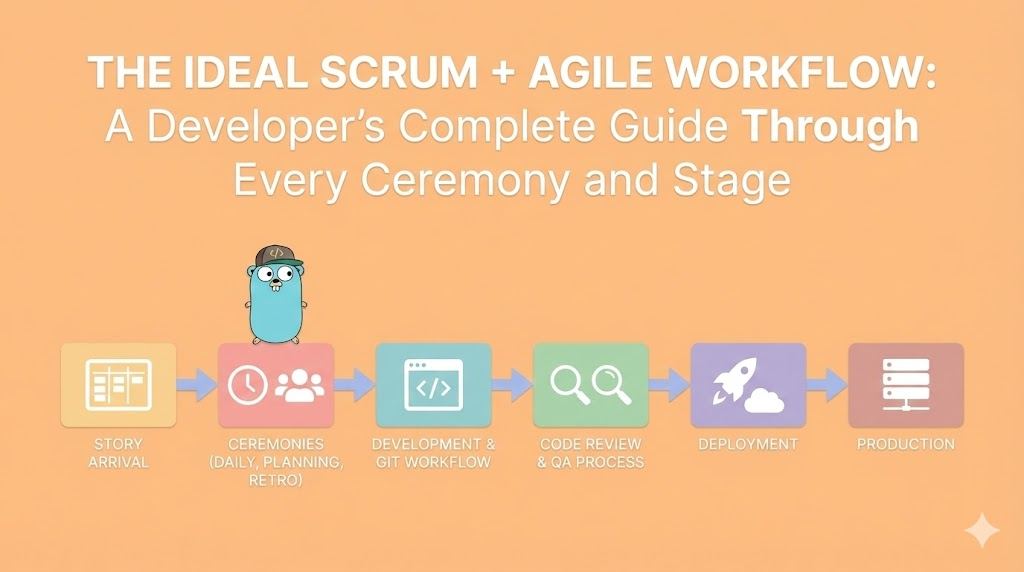
The Ideal Scrum + Agile Workflow: A Developer's Complete Guide Through Every Ceremony and Stage
A comprehensive guide to the ideal Scrum and Agile workflow from a developer's perspective. From story arrival through production deployment, understanding every ceremony, role, decision point, and what should actually happen at each stage.

App Store & Google Play: The Complete Publication Guide for Developers
Everything developers need to publish apps to Google Play and App Store: signing, tracks, review rules, ASO, CI/CD with fastlane, staged rollouts, and production incidents.

Architecture in Agile & Scrum: Communication, Planning & Execution
Master how to work effectively as an architect within Agile and Scrum teams. Learn to balance architectural vision with sprint velocity, communicate with product owners, and drive technical excellence in iterative development.